Why Your Website Needs a New Home
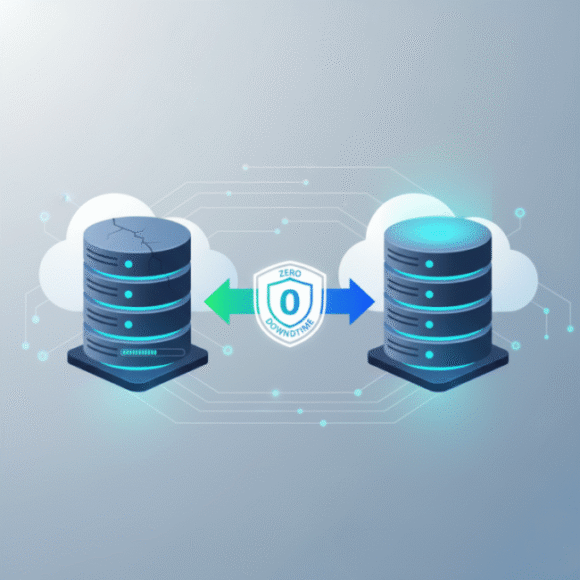
Is your WordPress website loading slowly? Are you frustrated with your current host’s poor support or escalating renewal prices? It’s time for a WordPress migration—moving your website to a new, better hosting environment. A successful migration can dramatically boost your site’s speed, security, and overall performance. However, the word “migration” often strikes fear in many—What if data gets lost? What if the site is down for hours? Don’t worry. This guide will walk you through the safe, step-by-step process for a Zero Downtime WordPress Migration, ensuring you move your site to a new host seamlessly.
Why People Transfer WordPress to New Hosts
There are several key reasons why website owners decide to change their hosting provider:
- Performance Issues:
The old hosting can no longer handle your traffic spikes.
Slow loading times are negatively impacting user experience and SEO rankings. - Cost Effectiveness:
Introductory pricing has expired, and renewal rates are too high for the service received.Better value is available elsewhere with superior features. - Security & Reliability:
A history of security breaches or insufficient backup protocols on the current host.
A need for a higher uptime guarantee. - Poor Support:
Technical support is slow to respond or unable to solve complex issues effectively.
Pre-Migration Checklist: Don’t Start Without These!
Thorough preparation is crucial to minimize the risk of data loss and downtime during the move.
1. Choose Your New Host Wisely
Before you commit, rigorously vet your new provider:
- Speed & Hardware: Confirm they offer SSD storage and integrated server-side caching mechanisms.
- Compatibility: Ensure the new environment fully supports the latest PHP version and WordPress requirements.
Step-by-Step: The Zero-Downtime WordPress Migration Process
Follow These Steps Meticulously for a Successful Transition
1. Transfer Files and Database
Method A: Manual via cPanel / FTP
- Use the File Manager on your old host to ZIP all your website files (especially the root directory).
- Download the ZIP file to your local computer.
- Export your entire database using phpMyAdmin (as a .sql file).
- On the new host, create a new database and user.
- Upload your website files to the new server.
Import the .sql file into the new database using phpMyAdmin.
Method B: Plugin (Recommended for Simplicity)
- Install a reliable migration plugin such as All-in-One WP Migration or Duplicator on your old site.
- Use the plugin to create a full backup (this includes both files and database).
- On your new server, install WordPress and the same plugin.
- Upload the backup archive through the plugin interface.
- Complete the installation process as guided by the plugin wizard.
2. Update wp-config.php
Once the files are in place on the new server, you must edit the $\text{wp-config.php}$ file to reflect the new database credentials:
- Update DB_NAME
- Update DB_USER
- Update DB_PASSWORD
- Update DB_HOST (often localhost, but verify with your new host).
3. Final Testing (Crucial Step for Zero Downtime
Testing before making the site public prevents embarrassing errors.
Hosts File Editing: Temporarily edit the hosts file on your local computer. This allows you to view the website as it exists on the new server’s IP address while the rest of the world still sees the old site.
Check every major page, form submission, image link, and plugin functionality.
4. The DNS Switch
Only proceed to this step once you are 100% satisfied with the test site.
- Log in to your Domain Registrar (where you bought your domain name).
- Locate the DNS settings and change your Nameservers from your old host to the new host’s Nameservers.
- DNS changes can take $\mathbf{2\ to\ 48\ hours}$ to fully propagate globally.
Why Professional Help Ensures a Secure Transfer
While manual migration is possible, even a small error can lead to hours of downtime or corrupted data.
If you want to ensure your WordPress migration is done safely, securely, and without any risk of data loss or spam injection, using a professional service is highly recommended.
- Our WordPress Migration Services offer:
- Guaranteed Zero Downtime: We manage the DNS switch strategically so your site remains accessible throughout the entire process.
- Security Vetting: We perform pre-and post-migration scans for malware and security vulnerabilities to keep your site spam-free.
- Performance Tuning: We optimize the database and configure caching settings during the move for immediate speed improvement.
Post-Migration Tasks: The Final Polish
After the DNS has propagated, finalize your setup:
Clear All Caches: Purge all caches from any caching plugins and clear any server-side caching tools active on the new host.
Reset Permalinks: Go to Settings Permalinks in your WordPress dashboard. Simply click Save Changes without making any edits. This forces WordPress to refresh its rewrite rules.
Test Links: Double-check all internal and external links one last time.
Decommission Old Host: Only cancel your old hosting account after you are completely certain that the DNS has updated everywhere and your site is running perfectly on the new server (wait at least 3-5 days to be safe).
Conclusion
A successful WordPress migration sets your website up for future success by providing a faster, more reliable foundation. By following this guide—prioritizing backups, testing thoroughly, and executing the DNS switch correctly—you can manage the move smoothly.
If the technical aspects feel overwhelming, remember that expert assistance can make the entire process entirely stress-free.
Ready to Go Live? If you find this process overwhelming, book your free expert consultation today! Otherwise, ensure your site is lightning-fast on the new host by reviewing our ultimate WordPress speed optimization guide.
6 Comments
This guide explains zero-downtime WordPress migration in a very simple and practical way. Perfect for beginners and professionals!
This is exactly what I needed! Migrating WordPress with zero downtime has always seemed impossible. Can’t wait to dive into this guide—hoping it helps smooth out my next website move!
Well-structured content that highlights risks and best practices effectively. A must-read before planning any migration.
This guide explains the migration process very clearly.
The focus on avoiding downtime is especially helpful for live websites.
Zero downtime is always a concern, and this article addresses it well.
The checklist-style approach is easy to follow.
This article helped me understand what to prepare before migration.
Clear explanations without unnecessary technical overload.